How to turn your own voice recording into a finished video
Record the script in your own voice and upload one file on the video page in AutoVideoStudio. It splits your narration across the scenes by word share, snaps the cuts to your natural pauses, and builds the visuals, captions and music around it. Your own voice costs nothing — it's never metered.
Last updated 1 November 2026 · by Venu Gopal Reddy Muvva, founder
Who this is for
Creators who want their own voice on the channel (it builds trust) but don't want to edit footage to it.
Steps
- 1. Create a free account
Sign up with your name, email and a password. No card. Your first 3 months are free with every feature unlocked, and onboarding makes a 1-minute sample video straight away so you see the whole pipeline.
- 2. Write the brief
On New video, type the topic in one line and pick the format (any format) and the length (match the length you'll record). Choose 16:9 for YouTube or 9:16 for Shorts, and add the audience and tone if you want.
- 3. Let it research and write
We read the top Wikipedia articles for your topic and number them S1, S2, S3… The script is written by our own AI on Surge's servers, and every scene lists the sources it uses.
- 4. Fix what the fact-check flags
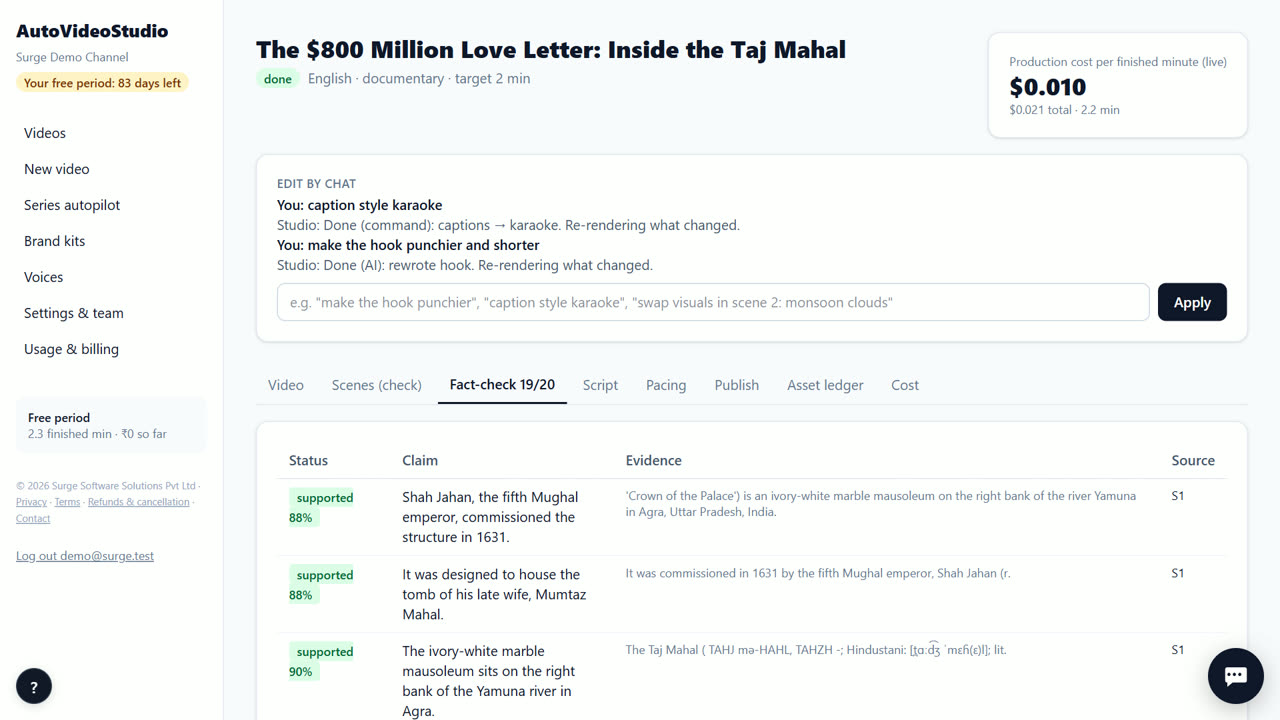
Every sentence with a number or a name is matched to its source. If a number is wrong or a claim isn't in the sources, the video pauses. Edit the line, or confirm you checked it, and the render continues.
- 5. Record and upload your narration
Read the script from the Script tab, record it in one take, and upload the MP3 or WAV on the video page. The cuts snap to your pauses.
- 6. Review the scenes
Every shot shows a relevance score against its narration. Swap a weak shot, re-search a scene, upload your own clip, or type a change such as “caption style karaoke”. Only what changed re-renders.
- 7. Download and post
Download the 720p MP4, the vertical Shorts, two thumbnails, and the title, description (with chapters, sources and credits) and tags. Upload them to your channel yourself — direct upload is coming soon.
Tips
- Read the script as written — the split follows the words, so big ad-libs throw off the timing.
- Leave a short pause between scenes; that's where the cuts go.
- Draft first with the free placeholder voice to check the visuals, then upload your recording.
- Your narration is not metered: only render minutes are, after the free period.
When AutoVideoStudio is not the right tool
AutoVideoStudio is not the right tool if you want an AI to speak in a natural voice today — natural AI voices and voice clones are coming soon. It also doesn't edit video of you talking on camera.
Questions
Which audio files work?
Upload one narration file for the whole video, such as MP3 or WAV.
Does my voice cost anything?
No. Your own narration is always free.
Can I use a natural AI voice?
Not yet. Today you upload your own narration or use the free robotic placeholder voice for drafts. Natural AI voices are coming soon.
What does it cost?
Nothing for your first 3 months. After that you pay only for what you use, at our cost — about ₹0.25 per finished minute (est.), so a 10-minute video is about ₹2.50. No subscription.
Free for your first 3 months. Then pay only for what you use.
Start free — 3 months on usRelated: How teachers can turn a lesson into an explainer video · How to make a faceless YouTube video from a topic · AutoVideoStudio vs Fliki · Pricing